


Ultimate Guide to the Vave Casino Mobile App for Australians: Download, Install & Features
Australians can install Vave Casino’s web app on iOS and Android, use bonuses and VIP perks, and play crypto games on the go with ease.
Join NowNavigation

Vave Casino is a crypto-focused platform with a sportsbook and a large casino game library. It also delivers a strong mobile setup.
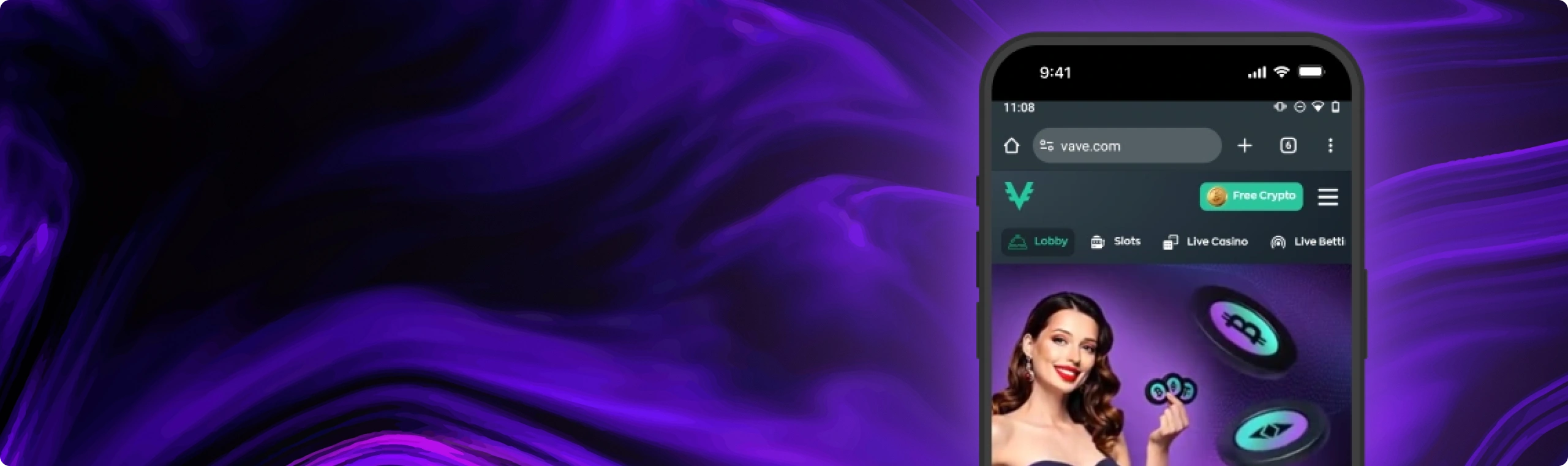
On phones, Vave works as a web app that you add to your home screen. You do not need to download an app file. You still get the same tools as the full site: table games, live dealer rooms, crypto deposits and withdrawals with popular coins, promos, loyalty tiers, and live chat. Updates load through the website, so you do not install patches later. Storage stays light since games cache as you play.
Now let’s look at how to use Vave on mobile and get the most out of each session.
How to Download & Install the Vave Casino App
Ready to use Vave Casino on the go? Setup takes a minute or two and works on iPhone, iPad, and Android devices. You add Vave to your home screen, then open it like a regular app. Follow the steps for your device below, and you can play anywhere, anytime.
For iPhone & iPad (iOS):
To get Vave running on your iPhone or iPad, follow these steps:
- Open Safari. On your iPhone or iPad, launch Safari and go to the Vave website. Log in to your account so you can start right away.
- Tap the Share button. When the site loads, tap the Share icon at the bottom of the screen. It looks like a square with an arrow pointing up.
- Select Add to Home Screen. In the menu that opens, tap Add to Home Screen.
- Confirm by tapping Add. A small window appears with the app name and icon preview. Tap Add to confirm, and the shortcut will appear on your Home Screen.
- Open Vave. Go to your Home Screen, find the Vave icon, and tap it. The web app opens fast, and you can jump into games at once.
 Download the
 IOS app
For Android Phones & Tablets:
To set up Vave on an Android phone or tablet, follow these steps:
- Open Chrome. On your Android device, launch Chrome and visit the Vave website. Log in to your account to continue.
- Open the menu. Tap the three vertical dots (⋮) in the top-right corner of the browser.
- Choose Add to Home Screen. In the menu, select Install App or Add to Home Screen. The label can differ by device, and both options work.
- Tap Install or Add to confirm. If a prompt appears, confirm the action. The device will create the shortcut and place it on your Home Screen.
- Launch Vave. Look for the Vave icon on your Home Screen or in the app drawer, then tap to open and start playing.
 Download the
 android app
App Features & Benefits
Why play on mobile? It gives you more freedom and fewer steps. Here is what you can expect from Vave on a phone or tablet.
Portability
Mobile play should feel instant. With Vave, it does. The icon sits on your Home Screen and opens the casino in its own window. You do not need to type the address or dig through browser tabs. You land in the lobby and can move to slots, table games, live rooms, or the cashier in a few taps.
Portrait view keeps buttons easy to reach with your thumb. Rotate to landscape when you want more space for reels and live video. If you also use desktop, your account stays the same. You can start on one device, then continue on another without losing your place. This matters for Australians who switch between phone and laptop during the day and want the same session flow.
Security
Vave runs on HTTPS which gives your data in transit top-notch protection . Just make sure you use a super strong password and protect your device with Face ID, fingerprint or a good old fashion PIN. Enable two-step verification on the wallets and exchanges you use – and please don’t store those recovery phrases anywhere near your digital life. Write them down on a piece of paper and stash it in a safe .
When you withdraw funds check that wallet address again before confirming the transfer – a double-check wont hurt . For bigger payouts, try sending a small test payment first – if it turns up as expected, send the rest over. Its usually safer to use trusted home Wi-Fi or a robust mobile signal when you’re out. Make sure your browser is up to date – you dont want to be leaving yourself exposed to the latest vulnerabilities. And if something just feels off stop and reach out to our support team through live chat. Better safe than sorry right ? A quick double check can save a whole lot of trouble.
Mobile Optimization
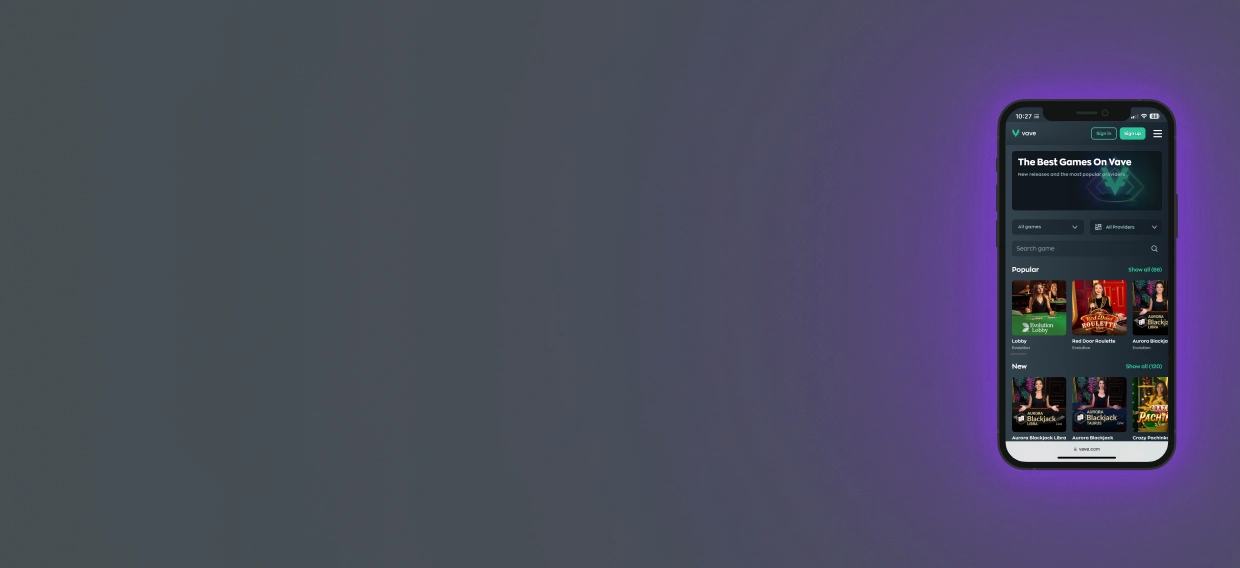
Vave adapts to your screen so text stays easy to read and taps land where you expect. The lobby sorts games into clear categories, and filters help you narrow results by type or provider without endless scrolling.
Search runs fast, which helps when the library is large. Game files cache as you play, so returning to a slot loads quicker, and storage use stays low. Live dealer rooms scale to your display and keep controls simple, so you can bet, chat, and switch tables without fighting menus.
Rotate the phone and most games adjust right away, so you can pick the view that feels best in your hand. On older devices, close background apps before you enter a live room to free memory and keep streams stable. Many Australian players do this on long commutes or weekend sessions when they rely on mobile data.
Features You’ll Use Often
Opening Vave from the icon gives a full-screen view that keeps focus on the lobby, not the browser frame. On a private device, you can save login details so you type less. The cashier sits in the same window, so deposits and withdrawals stay one tap away.
Live chat stays close too, and it opens inside the app window, so you can ask a question without leaving your table. Some phones and OS versions support push-style alerts for web apps. If your device supports them, you can turn alerts on for promos or key account messages.
The game area keeps a list of recent titles and often remembers your last bet size, which saves time when you return. Add a few simple habits, pin favourite games, keep brightness at a sensible level so the phone stays cool, and charge the device during long live sessions. Then mobile play stays steady day after day.
Bonuses and Promotions
Just like on desktop, you can claim promos on mobile. Open “Promotions,” choose an offer, read the rules, tap Activate, then start play. Here is the usual line-up:
- Welcome package — 325% up to 4 BTC (first 4 deposits):
- 1st deposit: 150% up to 1.5 BTC + 100 free spins
- 2nd deposit: 100% up to 1 BTC
- 3rd deposit: 50% up to 1 BTC
- 4th deposit: 25% up to 0.5 BTC
- Thursday Reload — weekly top-up for regular play
- Slot Races — leaderboard prizes based on your results
- Wheel of Fortune — spin for bonus rewards

App Requirements & Compatible Devices
You can run Vave from your browser, so it doesn’t tie you to a particular phone brand or app store. As long as your device’s fairly recent and your browser’s up to date, you should be good to go. What mainly matters is that your device’s OS is pretty current and your internet connection is reliable. With live tables and the latest slot tech all relying on your browser for video and graphics, a fresh browser version is a game-changer – each time you load the lobby, you’ll see a noticeable boost in performance. This keeps the compatibility wide open and the gameplay silky smooth.
App Requirements
At its most basic, Vave just needs three things: good software, decent hardware, and a solid internet connection. On iPhone and iPad, aim for at least iOS 15 and the latest version of Safari. On Android, try for Android 8.0 or later and the latest Google Chrome. In terms of hardware, 2gb of RAM or more should keep the pages loading quickly, and having about 200MB of free space will let your browser save off all the game assets like images & sounds. This is not a heavy install. The web app lives inside your browser and stores only light files as you play. On Android, a practical plan is 2 GB of RAM and 100–200 MB free for cached assets as you try more games.
Network quality affects play directly, especially in live rooms. Strong home Wi-Fi or a steady 4G/5G signal helps streams stay smooth and keeps bet placement quick. A target of 10 Mbps or higher works well, though many tables can run under that once the stream settles. If you see stutter, close other apps that use data, move closer to your router, or pause background downloads.
Higher-res screens make live video and menus much easier to read – you don’t actually need one of those top-of-the-line phones though. As long as your device’s got 4G or 5G, you’ll get a pretty decent live experience even when things are getting busy – perfect for Aussies who like to do most of their gaming on their mobile during evenings and weekends.
Battery health matters too. Live video and long slot runs can drain a phone fast, so it helps to stay above 20% charge, drop brightness a notch if the device gets warm, and plug in during longer sessions. This is normal mobile behaviour, not a Vave-only issue. A quick clean-up can also help. Close heavy apps or extra tabs to free memory on older devices, and you will often feel the difference right away.
Accessibility settings can make the interface easier to use:
- Increase system font size if text feels small.
- Use reduced motion if animations distract you.
- Try dark mode on OLED screens to reduce eye strain during night play.
The web app follows your device settings, so you do not need extra in-app toggles.
Compatible Devices
Vave works with a heap of modern devices, as long as your phone meets the bare minimum requirements. And that’s pretty much every iPhone that’s an 11 or newer plus the latest iPad Air, iPad mini and iPad Pro models. Most Android phones from the last few years should be good to go too, no extra setup required.
Since performance relies a fair bit on your browser, devices with the latest software tend to run smoothly through live tables and slot machines. Just stick to the guidelines and you should be able to enjoy stable video, sound and graphics every time you log in – which can make all the difference for Aussie players who switch between home Wi-Fi and mobile data on the go.

Mobile Web Version
Do you want to skip adding an icon? You can run Vave inside the browser at any time. Open the site, sign in, and you will see the same account info, balance, cashier, promos, VIP progress, and support you get in the Home Screen version. The layout adapts the same way, and the game catalogue stays identical. The only change is how you open it.
The browser route suits players who switch devices often or like a clean Home Screen. A bookmark in Safari or Chrome gets you back in two taps, and “Remember Me” keeps sign-ins short on a private device. Strict privacy settings or frequent cookie clearing can log you out more often. That is standard browser behaviour, not a casino setting. If a page looks odd after an update, a quick cache clear and reload often fixes it.
Live chat opens in the same window, the cashier stays one tap away, and search filters work as expected. If your phone and browser support push-style alerts for web apps, adding the icon to the Home Screen is the best way to get them. If your device does not support web app alerts, the browser and icon versions feel almost identical day to day.
Join NowFrequently Asked Questions (FAQ)
1. How do I install the app on an iPhone or iPad?

Go to the site in Safari and then tap the share button. From there you can add the Vave icon to your home screen by choosing Add to Home Screen - just tap Add and its done. The Vave icon now appears on your home screen and will launch Vave in its own window.
2. How do I install the app on Android?
If you are an Android user just open our site in Chrome, then tap the menu button up in the top right corner of the browser and chose either Install App or Add to Home Screen then confirm and the icon will be added to your home screen or inside your app drawer.
3. Is there an APK to download?
No. Vave does not use an APK for this setup. Installation happens through Chrome while you are on the site, and you do not need to enable Unknown Sources or sideload files.
4. The install prompt didn’t show. What now?
First of all make sure you browser is up to date. If you are an iPhone or iPad user then you will need to use Safari to install Vave. If you are on an Android device then open up Chrome's menu and select Add to Home Screen or Install App. If the Vave icon still doesn't show after trying to install, then try clearing the cache and give it another go.
5. What are the minimum requirements to run the app?
For an iPhone or iPad you will need to be on iOS 15 or later and make sure you are using the latest version of Safari. On an Android device you will need to be using Android 8.0 or later and the latest version of Chrome. You will also need at least 2GB of RAM and a bit of free space for any cached assets to keep everything running smoothly.
6. Will it work on tablets?
Yes. iPad and Android tablets add the web app the same way as phones through the browser. The larger screen also makes live tables and long game lists easier to manage.
7. How much storage does it use?
Less than your average native app. Over time you might expect to see around 100-200 MB in cached game assets. But if you ever need to free up some space you can just clear the cache through your browser settings.
8. Do I get the same bonuses on mobile?
Yes you do. Our mobile and desktop applications are linked up for sharing bonuses and VIP progress so it all works the same way. Just remember to check out the rules before you claim anything - including any eligible games, wagering terms and time limits.
9. How are updates delivered?
Updates load through the website, so the app stays current each time you open it. You do not download updates from an app store.
10. Can I play without the internet?
No. Real-money play needs an active connection to load games, place bets, and update balances.

